
 Mayor's Office of Contract Services311Search all NYC.gov websites



Submit a Subcontractor for Agency Approval
Learn how to submit a subcontractor for agency approval in PASSPort.
Before We Begin
The steps below can be completed by users provisioned with the roles:
- Vendor Admin
- Vendor Procurement L1
- Vendor Procurement L2
Important: The subcontractor can be submitted for approval if:
- The contract status is In Progress AND the Vendor Document Submission task has been assigned to someone at your organization.
- The contract status is Registered.
Contact your Contract Manager or Agency Contact listed in the Overview tab of the Contract if you are unable to submit the subcontractor for approval.
Locate the Contract
- Within PASSPort Central, click Contracts in the top navigation menu.
- Select Manage My Contracts from the drop-down menu.

The Manage My Contracts page displays.
- In the Keywords field, enter the Contract EPIN or use the other search filters to locate the contract.
- Click the Search button.
Search results will appear in a table below the search filters. - Click the pencil icon to the left of the Contract EPIN to view the contract.
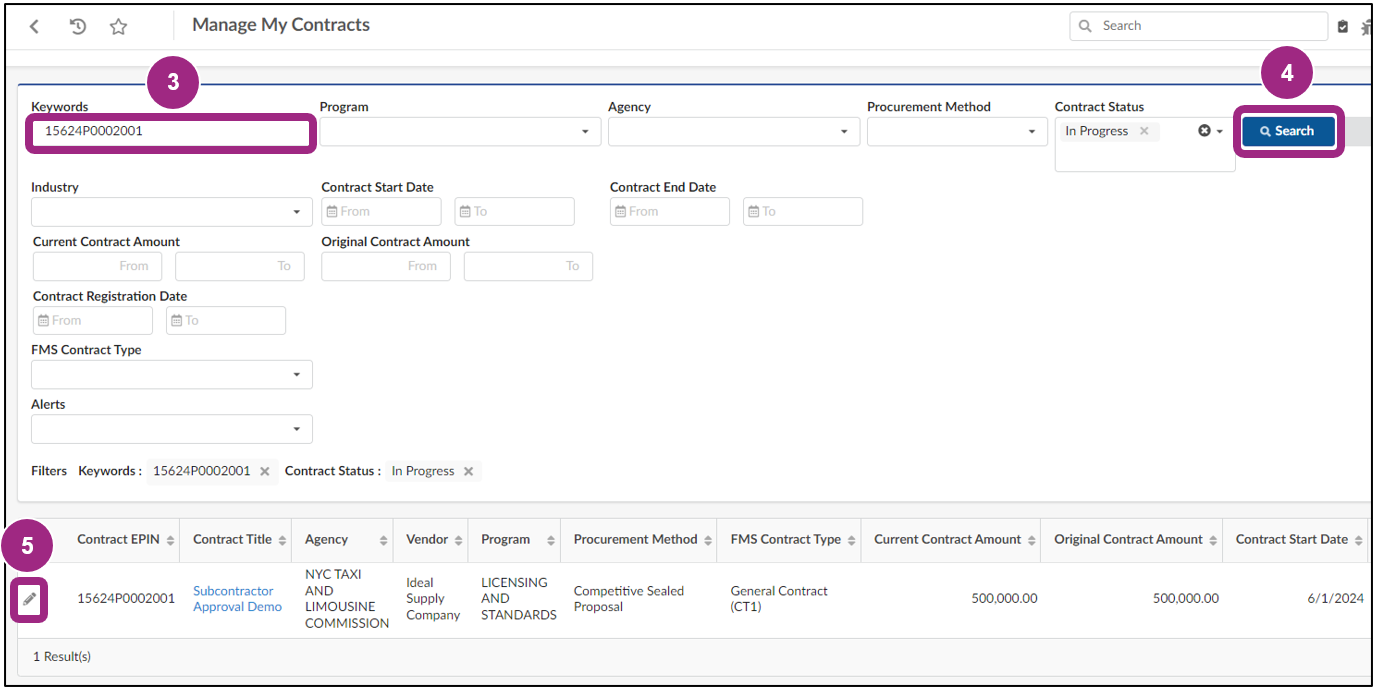
The contract will open into the Overview tab.
The following steps depend on whether your organization has already identified the subcontractor during the RFx response phase. Go to the section that corresponds to one of the scenarios below:
- Scenario 1: I identified a subcontractor in my RFx response.
- Scenario 2: “I do not know the vendor” was selected in my RFx response.
- Scenario 3: I did not add a subcontractor to my RFx response.
Scenario 1: I identified a subcontractor in my RFx response
If a subcontractor was selected in the RFx response phase, it will populate in a table in the Contract’s Subcontractor tab.
- Go the Subcontractor tab.
- Click the pencil icon to the left of the Subcontractor ID.
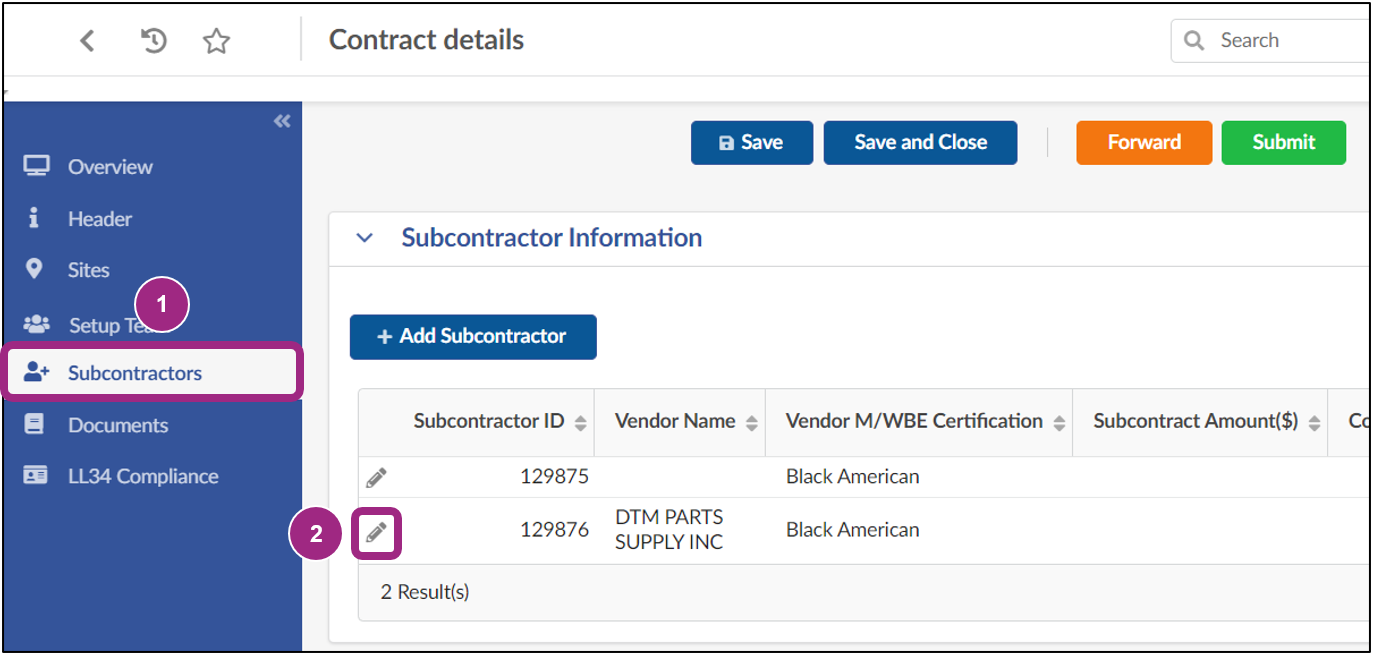
The Manage Subcontractor window appears.
Note: The subcontractor cannot be changed if it was selected during the RFx response phase. If you no longer plan to work with the previously selected subcontractor, view Replace the Existing Subcontractor for further instructions.
- Select Yes or No in the Is the subcontractor directly under the prime vendor of the contract? field.
- If Yes is selected, the Will this subcontractor be counted towards M/WBE Utilization field appears.
Select Yes or No in the drop-down field.
The Vendor M/WBE Certification field becomes visible if Yes is selected. If the subcontractor has multiple certifications, select the one you want to count towards the M/WBE Utilization.
Note: If the subcontractor's M/WBE certification will expire before the requested start date, a red blocking alert will stop you from submitting the subcontractor for approval. Select a different certification or contact the subcontractor to renew the certification.
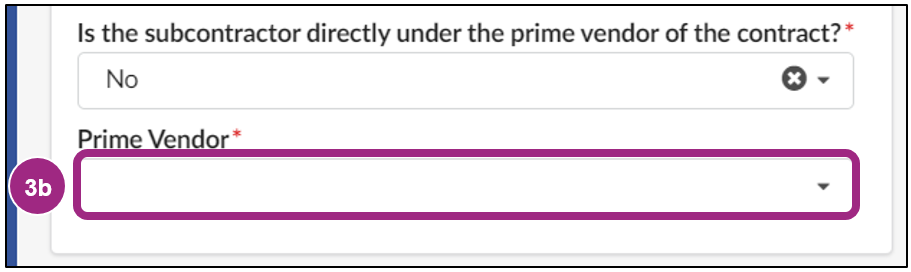
- If No is selected, the Prime Vendor field becomes editable.
Select the Prime Vendor from the drop-down field or click See All to select from the full list of PASSPort vendors.
- If Yes is selected, the Will this subcontractor be counted towards M/WBE Utilization field appears.
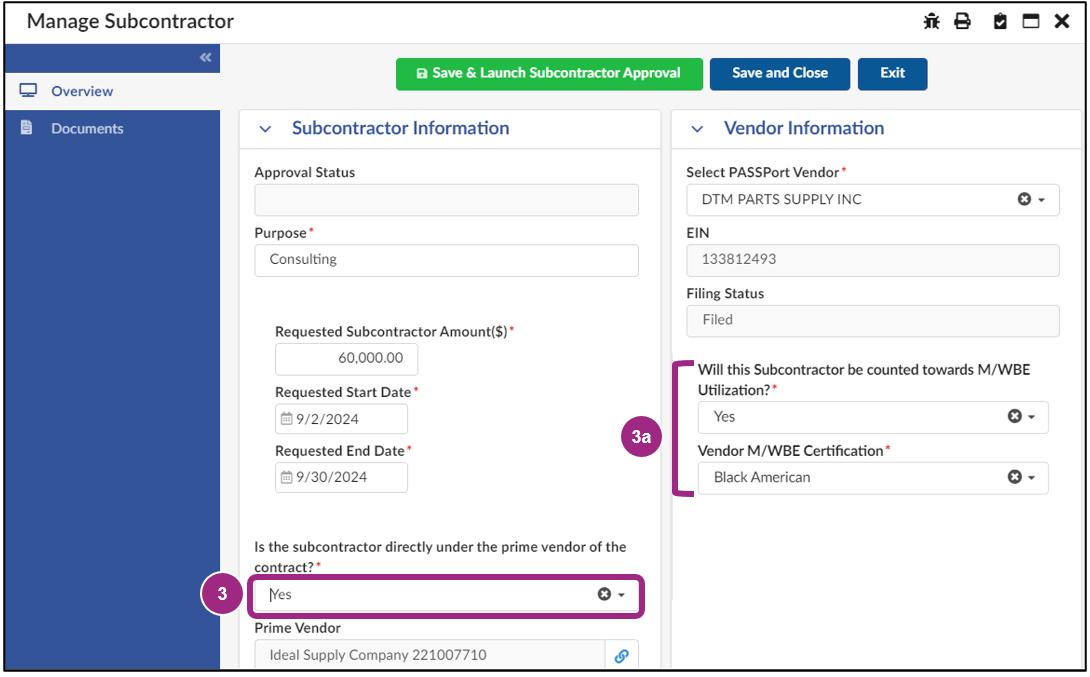
- Click the Save & Launch Subcontractor Approval button at the top of the window.

Go to Submit the Subcontractor for Approval to initiate the agency approval process.
Scenario 2: ‘I do not know the vendor’ was selected in my RFx response
If your organization selected the ‘I do not know the vendor’ checkbox in your RFx response, the placeholder will populate in the Subcontractor Information table of your contract.
This type of subcontractor can be identified by the empty Vendor Name field. The vendor must be identified before subcontractor approval can begin.
- Click the pencil icon to the left of the Subcontractor ID.
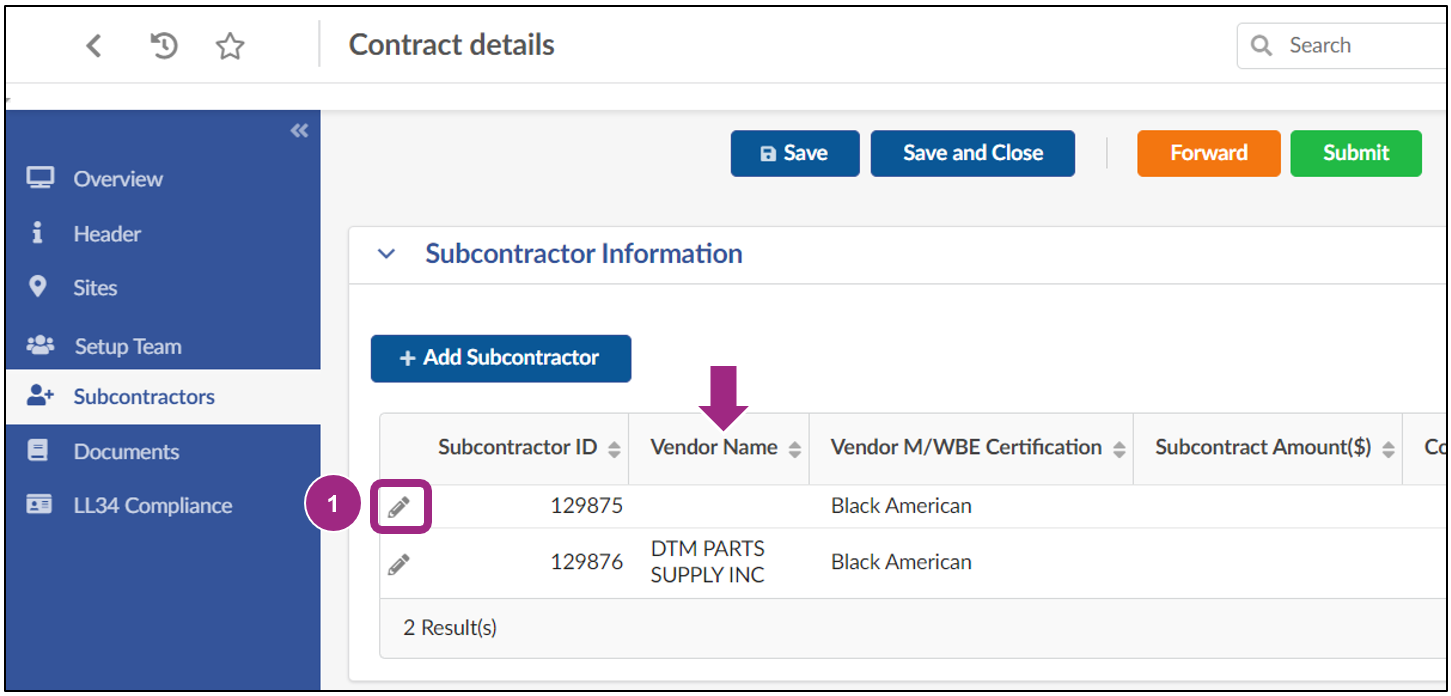
The Manage Subcontractor window appears.
- Unselect the ‘I do not know the vendor’ checkbox.
The page refreshes and the Select PASSPort Vendor field becomes visible. - Select the vendor in the drop-down menu or click See All to select from the full list of vendors.
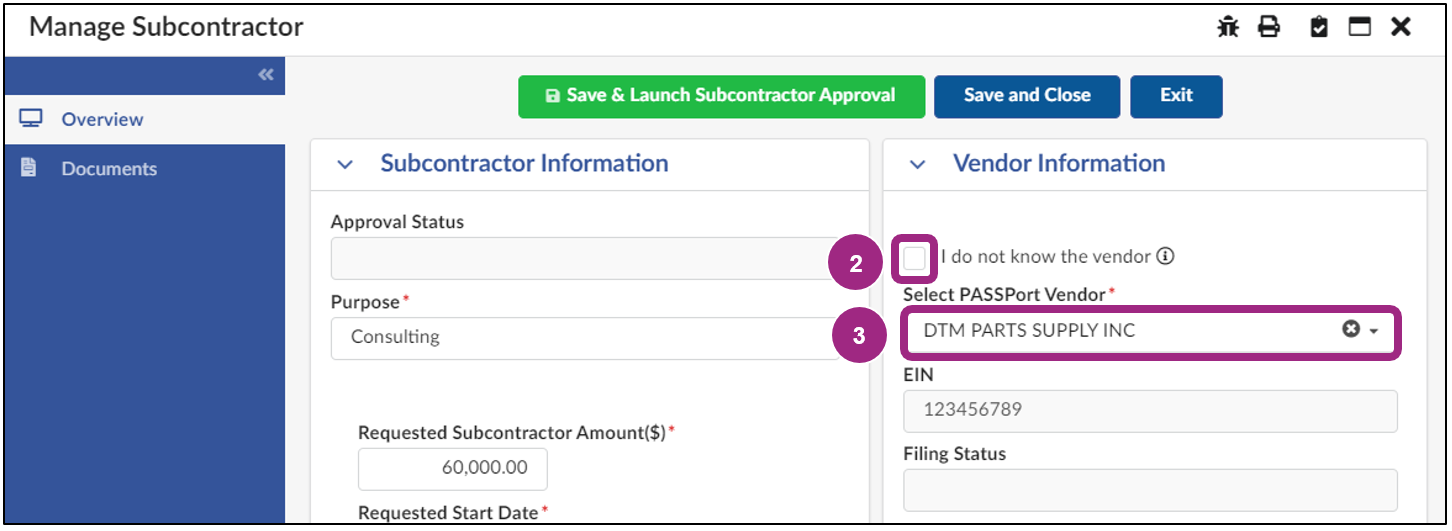
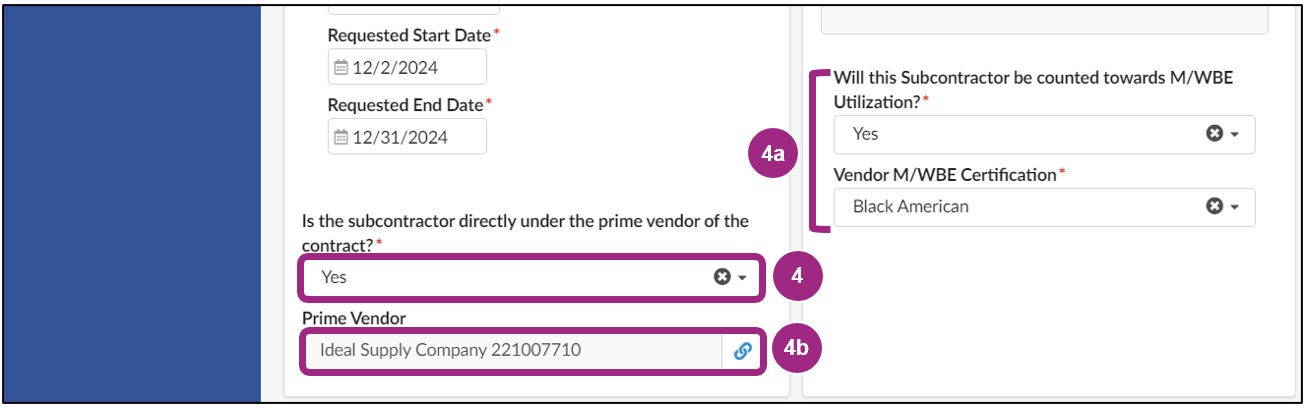
- Select Yes or No in the Is the subcontractor directly under the prime vendor of the contract? field.
- If Yes is selected, the Will this subcontractor be counted towards M/WBE Utilization field appears. Select Yes or No in the drop-down field.
The Vendor M/WBE Certification field becomes visible if Yes is selected. If the subcontractor has multiple certifications, select the one you want to count towards the M/WBE Utilization.
Note: If the subcontractor's M/WBE certification will expire before the requested start date, a red blocking alert will stop you from submitting the subcontractor for approval. Select a different certification or contact the subcontractor to renew the certification.
- If No is selected, the Prime Vendor field becomes editable.
Select the Prime Vendor from the drop-down field or click See All to select from the full list of PASSPort vendors.
- If Yes is selected, the Will this subcontractor be counted towards M/WBE Utilization field appears. Select Yes or No in the drop-down field.
- Click the Save & Launch Subcontractor Approval button at the top of the window.

Go to Submit the Subcontractor for Approval to initiate the agency approval process.
Scenario 3: I did not add a subcontractor to my RFx response
If a subcontractor was not selected during the RFx response phase, one can be added during the Contract Registration phase.
- Click the Add Subcontractor button in the Subcontractor Information section.
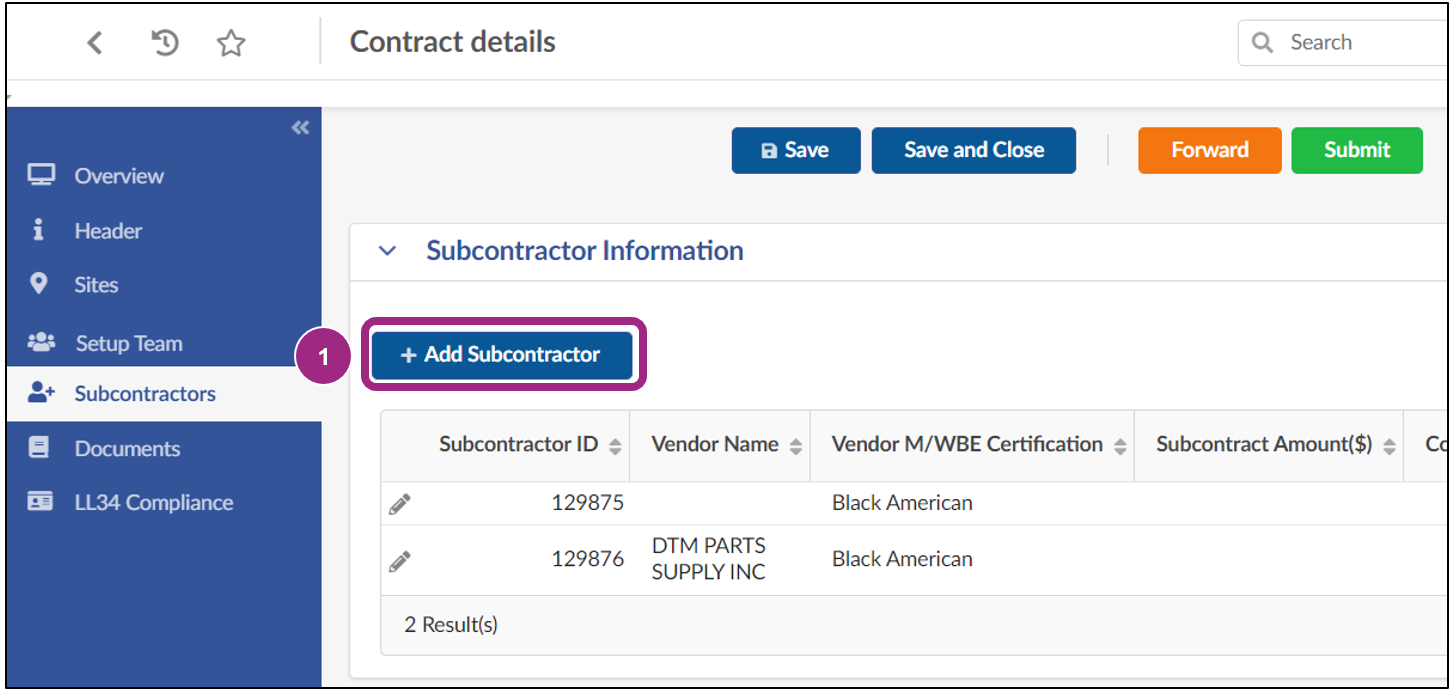
The Manage Subcontractor window appears.
- Complete all fields in the Subcontractor Information section.
- In the Select PASSPort Vendor field, select a vendor from the drop-down menu or click See All to select from the full list of vendors.
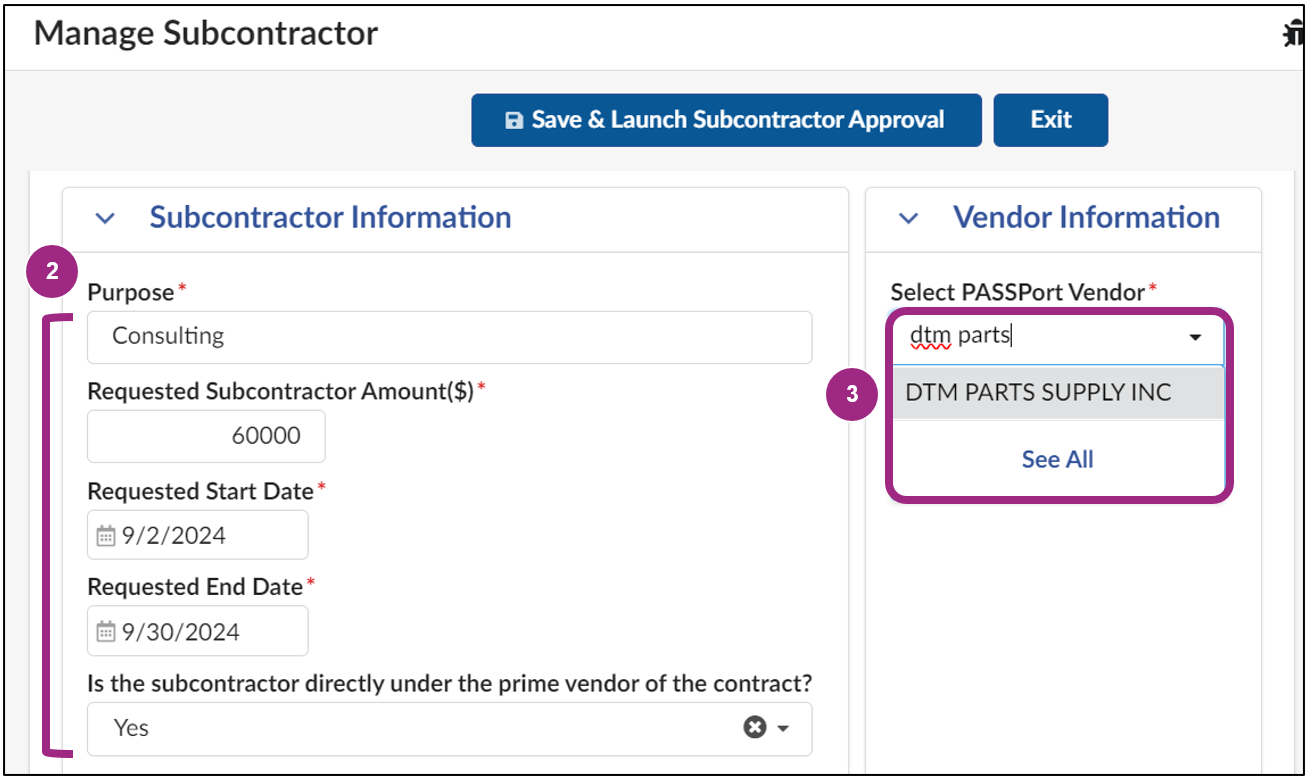
- Click the Save & Launch Subcontractor Approval button at the top of the window.

Submit the Subcontractor for Approval
After the Save and Launch Subcontractor Approval button is clicked, the page refreshes and new fields become available. The following message appears in the Alerts section of the page:
Name, Phone, Email, Industry, and/or Will this Subcontractor be counted towards M/WBE Utilization? on Subcontractor Approval need to be completed before you can submit.
Note: A non-blocking alert will appear in the Alerts section if the selected vendor is not Filed in PASSPort and/or does not have a PIP account. The subcontractor may still be submitted for approval. However, they will not be final approved by the agency until their PASSPort account status becomes Filed and the PIP account is created.
- Scroll down and complete any required fields marked by a red asterisk (*).
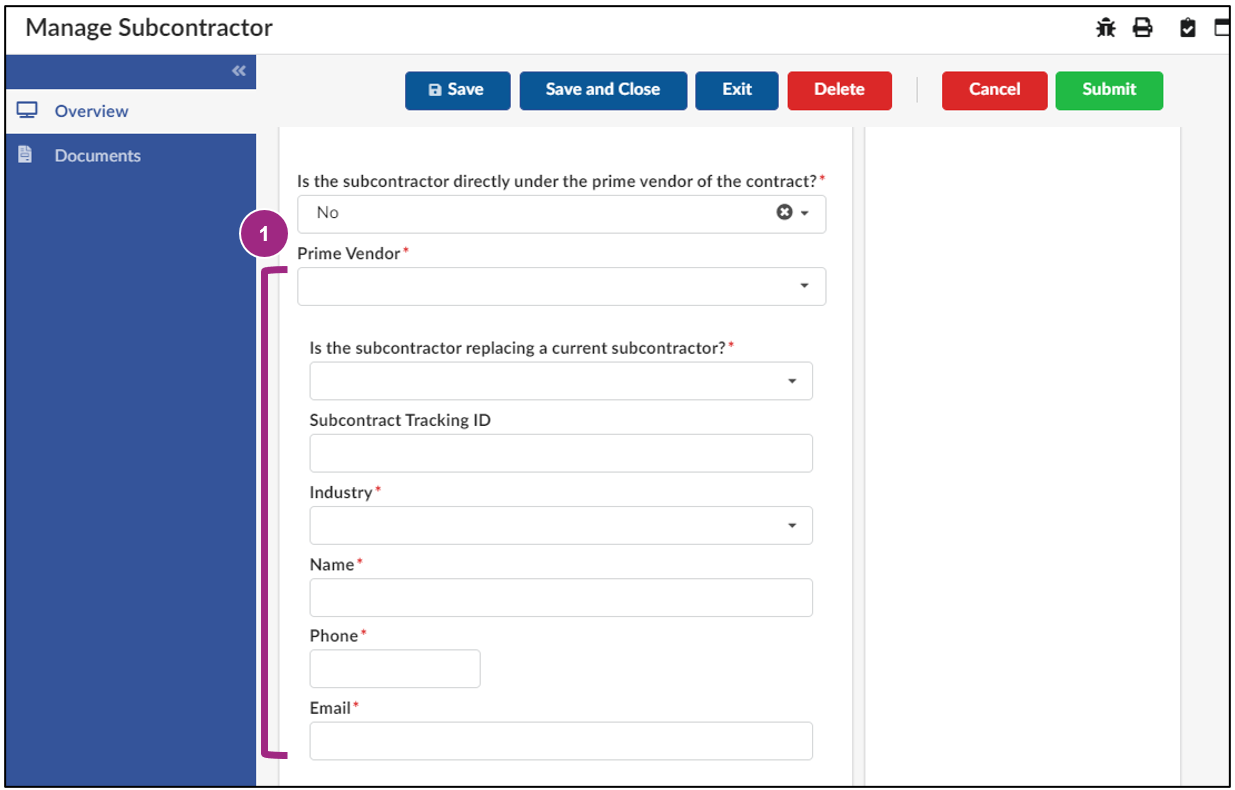
Note: If the subcontractor is replacing a previously approved subcontractor, select Yes in the Is the subcontractor replacing a current subcontractor? drop-down field and select the name of the Previous Subcontractor. Only subcontractors in Approved status will appear in the Previous Subcontractor field.
- Click the Save button at the top of the window.
- Click the Submit button.

Click/tap or press the enter key on a question to display the answer.
Do subcontractors need to be Filed?
Yes. Subcontractors must have a PASSPort account in Filed status to be final approved by the agency.
Do subcontractors need a PIP account?
Yes. Subcontractors must have a PIP account to be final approved by the agency.
Why is my desired subcontractor not populating in the Search PASSPort Vendor field?
The vendor may not have an account in PASSPort. Reach out to the subcontractor directly to confirm if a PASSPort account exists for their organization. The subcontractor must have a PASSPort account in Filed status to be approved by the agency.
My desired subcontractor’s M/WBE certification will expire soon. What should I do?
Contact the subcontractor to request they renew their M/WBE certification as soon as possible.
If the subcontractor cannot renew their certification in time, a new subcontractor can be selected to replace them.
How do I replace a subcontractor?
Refer to Replace the Existing Subcontractor for instructions on how to change your vendor subcontractor.