
 Mayor's Office for People with Disabilities311Search all NYC.gov websites


Audio Description and Captioning Guide

Download the Audio Description and Captioning Guide (PDF).
Make your videos and live performance accessible to all audiences with Audio Description and Captioning—benefiting the blind and low vision, deaf-blind, and Deaf and hard of hearing audiences.
Audio Description
Audio description is the practice of adding an extra audio track that narrates the important visual aspects of a video. Examples include setting up the scene, introducing characters, and describing important actions/events. Think of it as the audiobook version of your video. Audio Description is only added during times with no dialogue. Audio description can also be used in news videos, documentaries, live performances, and presentations. The same concepts apply with a few exceptions. When describing a video, performance, or presentation, you do not need to explain every single visual element. Instead focus on the important moments and be succinct.
Describing Films and TV Shows
When describing a film, TV show, or fictional web series, include the following:
- At the beginning of every scene, describe the setting and time. This should be brief. For example, “on a city street,” “in an office,” or “during the daytime.”
- Read all text that appears on screen.
- Opening and closing credits
- Text during scene transitions. For example, chapter titles, dates or timeframes like “Three years later...”.
- Subtitles for foreign languages spoken, if they are a part of the video image.
- Introduce characters as they enter a scene and announce when they leave, whenever it is not obvious from the audio. For example, “a dark-haired woman enters through the door,” or “Jack exits the room.”
- Describe actions and movements of characters that are important to the plot. For example, if a video is about dance, describe the dancing.
- Describe events that are important to the plot. For example, if a video is about natural disasters, describe the disasters.
Describing News and Documentaries
For news, informational videos, and documentaries:
- Introduce people that are not introduced by the host or narrator, especially if there is a name card on the screen. It is best practice for the person speaking to introduce themselves, if the narrator does not do it.
- Read any text that appears on screen that is not spoken aloud by the person speaking or narrator. This would include opening and closing screens and organization logos.
- When showing b-roll footage, describe anything that the narrator or person speaking does not mention and that is important to understand the content of the video.
- Describe in their entirety any statistics, graphs, or infographics that appear on screen if they are not described by the speaker or narrator.
Describing Live Performances and Presentations
Providing Audio Description for live events requires a professional audio describer and the provision of prep materials.
They will need to:
- Describe the stage. For example, “the stage has a large screen in the middle and a podium on the left.” Describe the backdrop, if present. Describe the arrangement of instruments/musicians.
- Introduce people as they come on stage. For example, “Walei enters the stage. He is wearing a blue button-down shirt with black pants and has a black cane which he swings from right to left as he approaches the podium.” For theatre performances, describe what the character looks like and their costume.
- Describe actions or gestures important to the presentation/event. For example, “Walei raises two fingers in the shape of a peace sign.”
- For Presentations:
- Describe the slides.
- Read the slide titles.
- Describe images in the slides.
- Read the bullet points on the slides.
Examples of Audio Description
- MOPD Becky Curran – NYC at Work Video Profile
- DOT Cycle Eyes
- NYCEM Ready New York - A Well-Planned Escape
- 2024 The People's Money Project Announcement
Audio Description Resources
- Audio Description in a few minutes – Rooted in Rights
- Audio Description Project: A resource for content creators, viewers and audio description professionals.
Captions
Captions are the written form of every sound within a video or live performance for Deaf and Hard of Hearing audiences. They include dialogue, sound effects, and music. There are two different kinds of captions, open captions and closed captions. Closed captions are regarded as the most accessible because they are text-based.
Open Captions
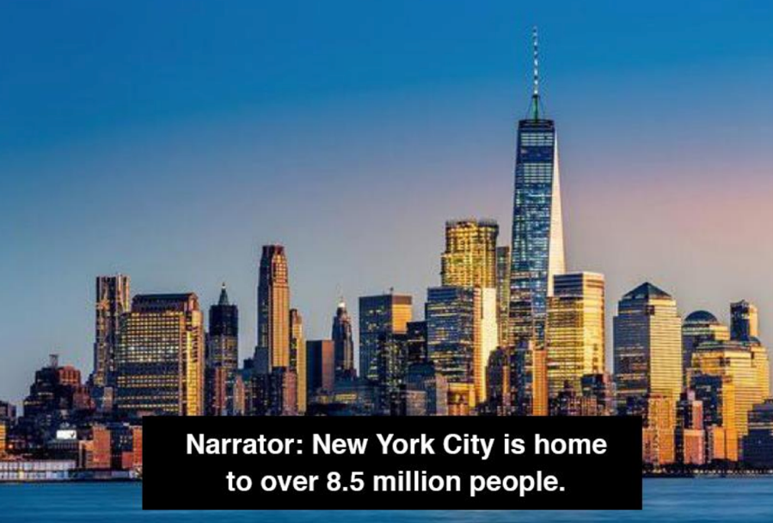
Open captions (OC) are embedded directly onto a video and therefore show automatically. They cannot be turned off. Open captions must be created during the video editing process. Because they are embedded into the video itself, they are simply an image of the text and will not be available to those using access technologies like screen readers and refreshable braille displays. A viewer will also not be able to adjust the look or position of them on their screen.
When creating open captions make sure that the caption text is easily viewable against the background of the video. We recommend white font with a thick stroke or on a black background strip. Also, be sure the placement of the captions does not interfere with other text or actions on the screen.
Closed Captions
Closed Captions (CC) are captions that can be turned on and off and are commonly found on live TV, streaming sites, DVDs, and Blu-Ray discs. Many web platforms such as Facebook, Vimeo, X, and YouTube support the use of closed captioning through either manual or automated captioning. To create a set of manual closed captions you’ll need to write out an .SRT file. An .SRT file is a plain text document that has all your captions written out with the appropriate time code for each.
Writing an .SRT File
You can manually write a .SRT file in a text editor like Notepad for Windows or TextEdit for Mac. Once you have all the information in your file, save it with a .srt file extension so it can be uploaded alongside your video. Learn more on How to create an .SRT File from 3Play Media.
Another option is to create captions within your video editor. This may be easier to write out and sync up to the timing of your video. Once you have added captions within your video, exporting it will create a pre-timed .SRT file that you can upload alongside your video.
Platform-specific resources:
Now that you have your .SRT file, simply upload the file alongside your completed video. Depending on the online service that you are using, there are different ways to upload your file.
Platform-specific resources:
- Adding Captions in Facebook
- Adding Captions in Vimeo
- Adding Captions in X
- Adding Captions in YouTube
Automated Captions
Some platforms like Facebook, Vimeo, and YouTube have the option of automated captions. AI-generated automated captions are not reliable. While the accuracy of AI-generated captions continues to improve, they are not accurate enough to meet the FCC’s 99% accuracy requirement, nor do they reliably identify names, music, or sound effects.
You should only use automated captioning as the first step of your captioning process. After a set of automated captions have been generated, go through them manually to ensure accuracy, timing, and add additional elements as needed. The AI-generated captions can be a good starting point, but they will need review and clean up.
Platform-specific resources:
Captioning Best Practices
Captions, whether open or closed, should:
- Be broken up into logical segments that are easy to read and comprehend, allow for enough time for reading, and be easily seen on the screen.
- Include the name of the speaker before the dialogue, when appropriate. For example, [Narrator]: Once upon a time…
- Identify sound effects in parentheses. For example, (Car Alarm).
- Mention important music, especially when it is being sung, by surrounding it with musical notes. For example, ♬ Happy Birthday to You... ♬.
Captions for Live Events and Performances
Live performances, speeches, and other presentations can have captioning as well, often referred to as CART.
Captioning for Unscripted Live Events
For unscripted performances, hire a Communication Access Realtime Translation (CART) provider. They are transcribers who type everything said live. These captions can be projected onto a large screen for the audience to view, available online via a link, and/or inserted into a live video conferencing platform as closed captioning. Check out MOPD’s list of CART providers in NYC.
Captioning for Scripted Performances
For live performances that will be sticking to a script like a play, captioning can be automated, not only for individuals who are Deaf or hard of hearing, but for individuals who speak other languages as well. There are many organizations that specialize in setting up this process online.
Resources
Here are all the resources shared in this guide.
- Audio Description in a few minutes – Rooted in Rights
- Audio Description Project: A resource for content creators, viewers and audio description professionals.
- How to create an .SRT File from 3Play Media
- Captioning in Adobe Premiere Pro
- Using Captions in Final Cut Pro X and Compressor
- Adding Captions in Facebook
- Adding Captions in Vimeo
- Adding Captions in X
- Adding Captions in YouTube
- Automated Captioning on Facebook
- Automated Captioning on Vimeo
- Automated Captioning on YouTube
- MOPD’s list of CART providers in NYC